Some links in this article are affiliate links. If you buy through them, SaveItMore earns a commission from the retailer — the price you pay is exactly the same. See our affiliate disclosure.
Every backup guide tells you to back up. Almost none of them tell you the part that actually matters: a backup you have never restored from is not a backup, it is a hope. The software you choose decides how likely that hope is to survive contact with a dead drive at 11pm on a Sunday.
This guide is about choosing the best backup software for Windows for your particular situation — what the categories mean, what the paid tools give you over what Windows already includes, and how to pay less than list price for the one you settle on.
The four jobs backup software has to do
Strip away the feature lists and every Windows backup tool is judged on four things:
- Capture — can it copy an open, in-use Windows system without you booting to something else? (This is Volume Shadow Copy. Anything serious uses it.)
- Schedule and forget — will it keep running without you remembering, and will it tell you when it fails?
- Prune — will it delete old backups on a rule you set, before the destination drive fills up and everything silently stops?
- Restore to different hardware — when the machine is gone, can you put the image on a new one that has a different disk controller and different drivers?
Point four is the one that separates free from paid, and it is the one nobody tests until the day they need it.
File backup vs disk image — get this right first
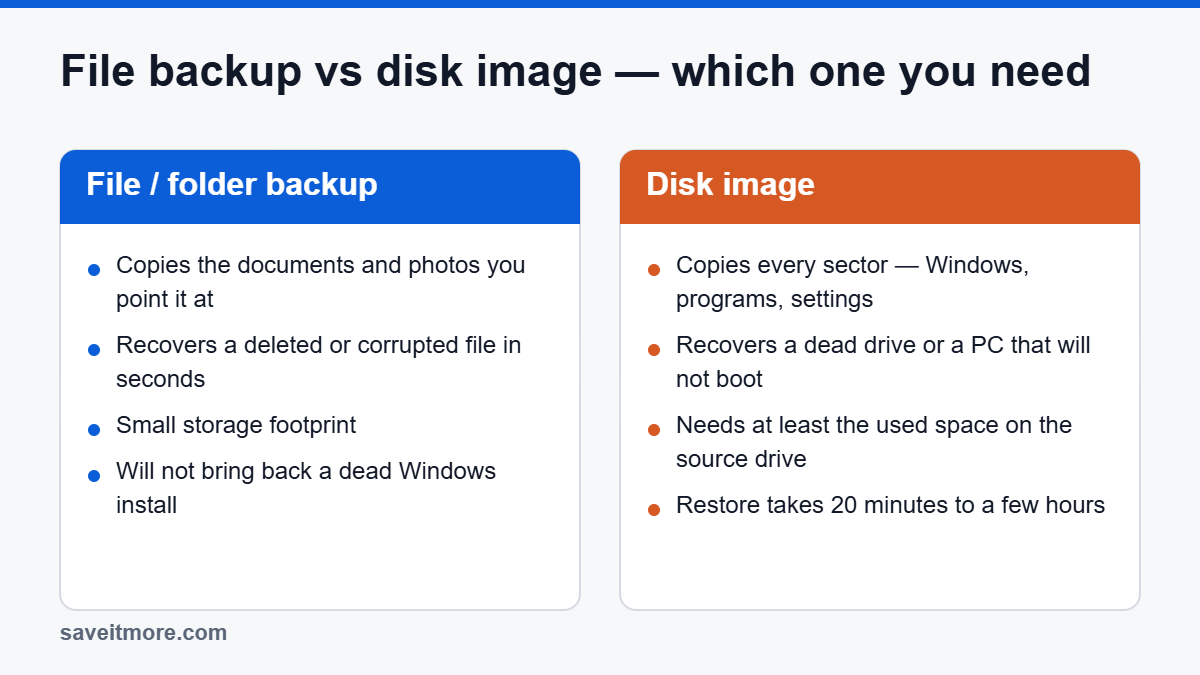
These are two different products that get sold under one word, and choosing the wrong one is the most common mistake in this whole category.
| File / folder backup | Disk image | |
|---|---|---|
| What it copies | The documents, photos and folders you point it at | Every sector of the drive — Windows, programs, settings, files |
| Recovers from | Deleting the wrong file, a corrupted document, ransomware on your data | A dead disk, a failed Windows update, a machine that will not boot |
| Restore time | Seconds for one file | 20 minutes to a few hours for the whole machine |
| Storage cost | Low | High — plan for at least the used space on the source drive, times the number of versions you keep |
The honest answer is that you want both, and the reason is simple: an image restore brings the machine back to how it was last Sunday, but it will not bring back the file you wrote on Tuesday and deleted on Wednesday. File backup covers the small daily disasters; imaging covers the one big one.
Do you need to pay at all?
Windows ships with two things that look like backup, and it is worth being clear about what each one is and is not.
File History keeps versioned copies of files in your user folders on an external drive. It works, it is free, and it is genuinely useful for the “I overwrote that document” problem. It does not image your system, it does not do a bare-metal restore, and its scheduling and reporting are thin.
Setup steps for both are on Microsoft’s own Windows support pages, and they are worth enabling even if you go on to buy something.
OneDrive is sync, not backup. This distinction is not pedantry — if a file is corrupted or encrypted on your PC, sync faithfully copies the damage to the cloud. OneDrive does keep version history and a recycle bin, which buys you a partial rescue, but it is not designed as a recovery plan and should not be your only one.
So: if all you care about is documents and photos, and you are disciplined about an external drive, free is defensible. The moment you have a machine you cannot afford to spend a weekend rebuilding — a work laptop, a machine with a licensed software stack on it, anything with a configuration you could not reproduce from memory — imaging is worth the price of a licence, and the licences here are one-time purchases in the tens of dollars, not enterprise money.
What you are actually paying for
Across the consumer Windows backup tools, paid tiers buy you roughly the same list. It is worth knowing which of these you will realistically use:
- Bootable rescue media — a USB stick that boots the backup tool when Windows will not start. This is the single most important paid feature. Free tiers frequently omit it, and without it your image is a file you cannot reach.
- Dissimilar-hardware restore (variously “universal restore”, “system transfer”) — injects the right drivers so an image from an old machine boots on a new one. Essential if the reason you are restoring is that the old machine died.
- Incremental and differential chains — only copies what changed, so a nightly backup takes minutes instead of hours. Free tiers often give you full backups only, which in practice means you stop running them.
- Backup scheme and retention rules — automatic deletion of old backups so the destination never fills. Underrated. A backup job that has been failing for three months because the disk is full is the most common failure mode there is.
- Encryption and compression — matters if the backup drive leaves the building or lives at a relative’s house.
- Command-line and scheduling hooks — only relevant if you are automating several machines.
The best backup software for Windows: the main paid options
AOMEI Backupper
AOMEI’s line is the one most people land on when they want imaging without complexity. Backupper covers system, disk, partition and file backup with the usual incremental and differential options, and the paid tiers add the universal restore and bootable media pieces. AOMEI also sells Partition Assistant separately, which handles the disk-cloning and resizing side, and MyRecover for deleted-file recovery — worth knowing, because people buy the wrong one of the three and then complain the tool does not do what they wanted.
AOMEI’s pricing model is the thing to pay attention to: there is a one-year licence and a lifetime licence with free upgrades, and the gap between them is usually small enough that lifetime is the better buy if you intend to keep the machine. Current codes are on our AOMEI coupon page.
EaseUS Todo Backup
EaseUS covers the same ground and is the more polished of the two interfaces, with a straightforward smart-backup mode for people who do not want to think about schemes and chains. EaseUS’s real strength in this catalogue is breadth — Todo Backup for imaging, Data Recovery Wizard for undeleting, Partition Master for cloning and resizing — and if you are likely to need two of the three, look at whether the bundle beats two separate licences before you buy.
The caveat is the same one that applies to every vendor in this space: read which tier includes the bootable rescue environment, because the entry tier sometimes does not. Discounts, including the education pricing, are at EaseUS’s live deals page.
Abelssoft Backup
A smaller German developer whose backup tool sits alongside a set of Windows maintenance utilities (PC Fresh, WashAndGo, JetDrive). It is a reasonable pick if you want something simple and light rather than a full imaging suite, and Abelssoft licences tend to be cheap. Codes are on the Abelssoft coupon page.
The ones we do not have codes for
For completeness, because a guide that only names the brands it earns from is not much of a guide: Macrium Reflect is the tool most IT people reach for and its restore engine has a strong reputation; Veeam Agent for Microsoft Windows has a free tier that is unusually capable for home use; and Duplicati and Restic are open-source options if you want encrypted file backup to cloud storage you already pay for. None of these pay us anything. If one of them fits your situation better, use it.
The 3-2-1 rule — and where the best backup software for Windows fits into it
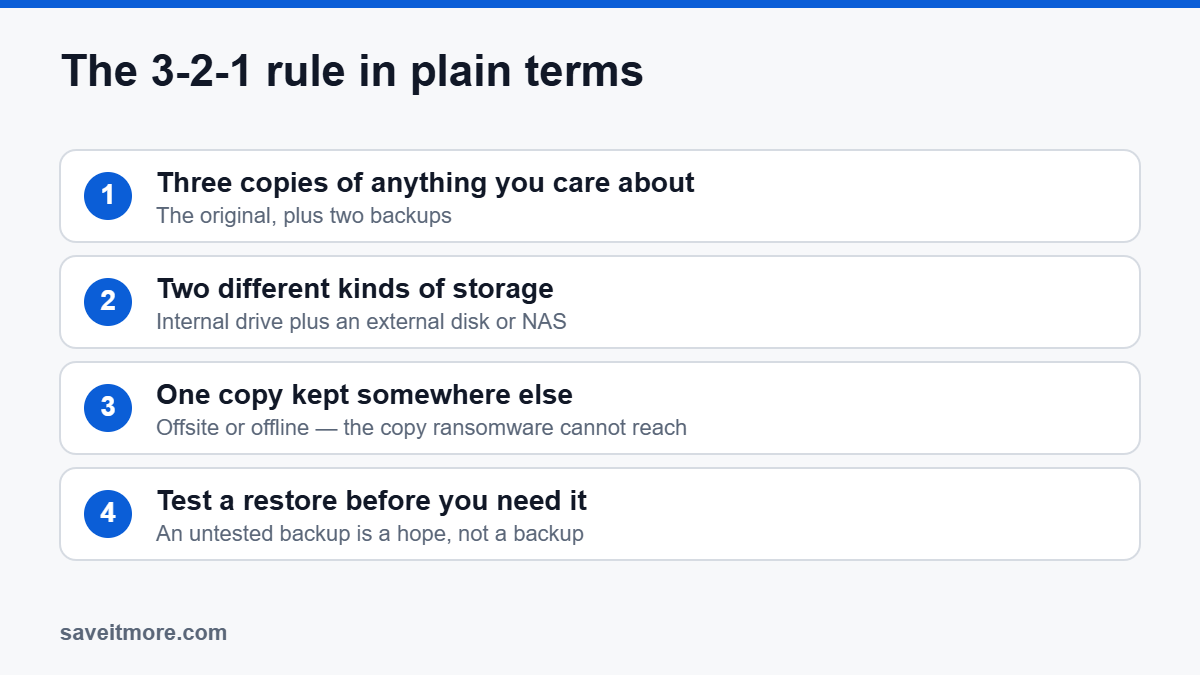
Three copies of anything you care about, on two different kinds of storage, with one copy somewhere else. In a normal house that translates to: the original on your PC, an image on an external USB drive, and either a cloud copy of the important folders or a second external drive that lives at a relative’s house and gets swapped once a month.
The “somewhere else” copy is not about paranoia. It is about the failure modes that take out both the PC and the drive sitting next to it — theft, a surge, a burst pipe, and ransomware that walks any drive letter it can see. That last one is why an always-connected backup drive is only half a plan.
Backup is not recovery — know which problem you have
If you are reading this after deleting something, backup software is the wrong aisle. What you want is file recovery software, which scans a drive for data that is still physically present but no longer indexed. Two rules decide whether it works:
- Stop writing to that drive immediately. Every new file written is a chance to land on the sectors holding your deleted one. If it is your system drive, shut down and recover it from another machine or a USB boot.
- A drive making noise is a hardware problem, not a software one. Clicking, grinding or a disk that disappears and reappears means you should stop and consider a data recovery lab. Running scan after scan on failing hardware can finish it off.
For the ordinary “I emptied the recycle bin” case, the recovery tools worth looking at are EaseUS Data Recovery Wizard, Wondershare Recoverit and Drecov. All three let you scan for free and only charge to write the recovered files out, which means you should always run the free scan first and confirm your file is in the results before you pay anything. If the scan does not find it, no licence will.
Before you pay: five things to check
- Perpetual or subscription? Utility software is one of the last categories where a genuine one-time licence still exists. Check whether “lifetime” means lifetime of the current version or includes upgrades.
- How many PCs? Household and technician licences exist and are usually far cheaper per machine than buying twice.
- Does your tier include bootable media? Say it out loud before you click pay.
- Refund window. Most of these vendors run a 30-day policy. Test your restore inside it.
- The renewal price. On annual licences the second-year price is frequently much higher than the first — the discount is almost always a new-customer discount.
The step almost everyone skips
Once your first image is done, test it. Not next month — that evening. The cheap version of the test: create the bootable USB, boot from it, and confirm the tool can see both the rescue environment and your backup file. That takes fifteen minutes and catches the two failures that ruin real restores, which are “the rescue stick does not boot with this machine’s UEFI settings” and “the rescue environment has no driver for the disk the backup lives on”.
The thorough version: restore the image to a spare drive and boot it. If you have a spare SSD lying around, this is worth doing once. After that, set a reminder to re-test every six months, because the drivers, the drive and the Windows version all move underneath you.
Frequently asked
What is the best backup software for Windows for most people?
For a single home PC that you want back exactly as it was, an imaging tool with bootable rescue media — AOMEI Backupper or EaseUS Todo Backup — covers it, with File History switched on alongside for day-to-day file versions. If you are protecting several machines, look at a technician or multi-PC licence rather than buying twice.
How often should I back up?
Ask yourself how much work you are willing to redo. If the answer is “a day”, back up daily. Most home setups land on a weekly full image plus daily incremental file backup, which is a sensible default.
Can I back up to a NAS or a network drive?
Yes, and all the paid tools above support it. Check that the tool can authenticate to the share from the rescue environment, not just from inside Windows — that is where network backups tend to fall over.
Is an SSD safer than a hard drive for backups?
For a drive that sits in a drawer unpowered for months, a conventional hard drive is the safer choice — SSDs rely on stored charge that slowly leaks away when unpowered. For a backup drive in regular use, an SSD is fine and faster.
Does backup protect me from ransomware?
Only if the backup is not reachable by the infected machine. An always-plugged-in USB drive can be encrypted along with everything else. Offline media, or storage with immutability or versioning, is the part that actually saves you.
Where to get the licence cheaper
The best backup software for Windows is discounted more or less permanently — the list price is largely notional, and there is rarely a reason to pay it. Current working codes for the tools above:
- AOMEI coupon codes — Backupper, Partition Assistant, MyRecover
- EaseUS coupon codes — Todo Backup, Data Recovery Wizard, Partition Master
- Abelssoft coupon codes — Backup and the PC maintenance range
- Wondershare coupon codes — Recoverit and the wider Wondershare suite
- Drecov coupon codes — monthly, yearly and lifetime recovery licences
- ACDSee coupon codes — if the thing you are protecting is a photo library, the cataloguing side matters as much as the backup
- How to recover deleted files on Windows — every route in order, and the SSD trap
If your reason for reading this was a drive that is about to be replaced rather than one that already failed, the cloning route is different from the backup route — see our guide to cloning a hard drive to a new SSD. And if you are rebuilding a machine from scratch, the cheapest legitimate way to buy a Windows licence is worth reading before you pay Microsoft’s retail price.