
Some links in this article are affiliate links. If you buy through them, SaveItMore earns a commission from the retailer — the price you pay is exactly the same. See our affiliate disclosure.
Every EaseUS vs AOMEI comparison runs into the same problem: they make the same three products — a backup and imaging tool, a partition manager that clones drives, and a file recovery tool. They compete on the same keywords, they discount at the same times, and their feature lists read almost identically.
So the honest version of this comparison is not “which is better” — for most people either will do the job. It is which one fits what you are trying to do, and which licence you should buy. Those two questions have different answers depending on your situation, and that is what this page is for.
EaseUS vs AOMEI: the product line-up, side by side
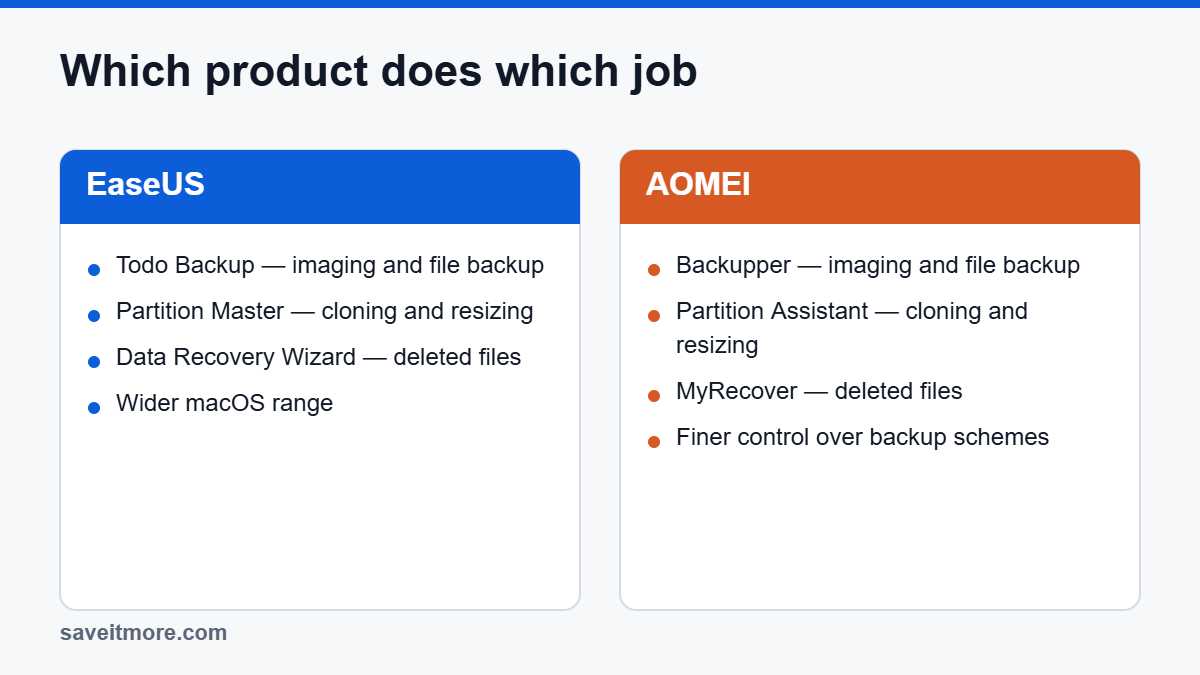
| Job | EaseUS | AOMEI |
|---|---|---|
| Backup and disk imaging | Todo Backup | Backupper |
| Partitioning, resizing, disk cloning | Partition Master | Partition Assistant |
| Deleted file recovery | Data Recovery Wizard | MyRecover |
| Phone data transfer / backup | MobiMover | FoneTool |
| Central management of several PCs | Todo Backup (technician tiers) | Centralized Backupper |
The EaseUS vs AOMEI overlap between rows one and two is where most buying mistakes happen. Both vendors put cloning in the partition tool, not the backup tool — this is the single most common purchase mistake in this category. If your job is “move Windows to a new SSD”, you want Partition Master or Partition Assistant, not Todo Backup or Backupper. If your job is “protect this machine against a dead drive”, it is the other way round.
EaseUS vs AOMEI: where they genuinely differ
Interface and learning curve
EaseUS is the more approachable of the two. The backup tool leads with a one-click smart mode that picks sensible defaults, and the partition tool presents operations as a queue you build and then execute. If you want to do the thing and close the window, EaseUS asks fewer questions.
AOMEI exposes more of the machinery — backup schemes, chain types, retention rules — closer to the surface. That is friction if you do not care and an advantage if you do. People who want to set up a specific incremental-with-retention arrangement generally find AOMEI faster to configure.
The free tiers
Both vendors run free versions, and both use them as a funnel. The pattern is the same: the free tier does the thing until the last step, where it tells you the operation needs a paid licence.
Broadly, the free tiers cover basic file backup, basic partition operations on data disks, and a limited-capacity recovery scan. What is generally not free in either: cloning the system disk, MBR-to-GPT conversion, restoring to different hardware, and recovering more than a small quota of data. AOMEI’s free Backupper has historically been the more generous of the two on the backup side, while EaseUS’s free recovery scan is the more useful of the two for finding out whether your file is recoverable at all.
Tiers move around, so treat that as a starting point rather than a promise, and check the current feature matrix on the vendor’s own page before you commit.
Licensing — the part that actually costs you money
This is where the real decision lives, and it is not about features at all.
- Both sell a one-year licence and a perpetual / lifetime licence. The annual is cheaper up front and renews at a higher price than you first paid. The lifetime is the better value if you keep the machine more than about two years — which most people do.
- “Lifetime” does not always mean free major upgrades. On some tiers it means the current major version forever, with paid upgrades later. Read that line on the product page before you buy; it is the difference between the two vendors’ offers more often than any feature is.
- Multi-PC licences are much cheaper per machine. If you look after a family’s computers, a two-PC or technician licence usually costs less than buying twice.
- Bundles beat singles when you need two tools. Both vendors sell backup-plus-partition and all-in-one bundles. If you are cloning to an SSD and want a backup afterwards, price the bundle before you buy the tools separately.
Neither vendor’s list price is a real number. Both discount continuously — see EaseUS’s live deals and AOMEI’s live deals. EaseUS also runs education pricing for students and teachers with verification on their own site, which is the deepest legitimate discount either of them offers.
Support and platform coverage
Both are ticket-and-email operations with paid tiers that promise faster response. Neither is going to phone you back.
On platforms: EaseUS has the wider macOS range — the recovery and partition tools both have real Mac versions. AOMEI is more Windows-centred. If any of the machines you look after are Macs, that alone probably decides it.
EaseUS vs AOMEI: so which one?
Choose EaseUS if: you want the shortest path from install to done; you might need the Mac versions; you are a student or teacher and can use the education pricing; or your main need is file recovery, where the free scan tells you whether paying is worth it before you pay.
Choose AOMEI if: you want fine control over backup schemes and retention; you are protecting several machines and like the centralised management; or the lifetime licence with upgrades works out cheaper for the specific tool you need — which it often does.
Choose neither if: you are an IT person imaging machines regularly. Macrium Reflect is the tool that crowd standardises on, and Veeam’s free Windows agent is unusually capable. Neither pays us anything; both are worth knowing about.
EaseUS vs AOMEI on the three jobs people actually buy these for
Imaging a system disk you can restore from
Both create a full system image, both support incremental and differential chains, and both put the bootable rescue environment behind a paid tier. The practical differences are in the defaults: EaseUS leads with a smart mode that picks a scheme for you, while AOMEI puts the scheme, the retention rule and the chain type in front of you at setup.
If you want it configured once and then forgotten, either is fine. If you want a specific arrangement — say a weekly full with daily incrementals, keeping four weeks and deleting the rest automatically — AOMEI gets you there with less clicking. The thing to verify in both, before you rely on it, is that the rescue USB boots on your actual machine with its actual firmware settings.
Cloning to a new or smaller SSD
This is the partition tool’s job in both product lines, not the backup tool’s. EaseUS Partition Master and AOMEI Partition Assistant both clone a system disk, both resize partitions to fit a smaller target, and both offer SSD alignment and MBR-to-GPT conversion on paid tiers.
Neither has a decisive edge here. What matters far more is following the process properly — suspending BitLocker, choosing disk clone rather than partition clone, and checking the partition style. Our guide to cloning a hard drive to a new SSD covers the steps in order.
Recovering deleted files
Here there is a real difference, and it is in maturity rather than features. EaseUS Data Recovery Wizard has been in this market far longer than AOMEI MyRecover and generally surfaces more in a deep scan, particularly on damaged filesystems and memory cards.
That said, the only test that matters is your drive. Run the free scan in both, look for your file in the results, and buy whichever one finds it. Neither charges to scan. If you are in this situation right now, read how to recover deleted files on Windows before you install anything, because where you install it changes your odds.
EaseUS vs AOMEI free tiers, in more detail
Both vendors use the free version as a funnel, and both are upfront about it once you reach the paywall. Broadly what you get without paying:
- Backup: file and folder backup, scheduling, and usually system backup. What is paywalled is the bootable rescue media, restore to different hardware, and in places the incremental scheme options.
- Partitioning: resize, move, create and format on data disks. Cloning the system disk and converting between MBR and GPT are the usual paid lines.
- Recovery: a full scan and preview, with a cap on how much data you can actually write out — historically a couple of gigabytes, but it moves.
Tiers change between releases, so treat that as a map rather than a promise and check the vendor’s current comparison table before you buy. The one constant worth planning around: the rescue media is nearly always paid, in both product lines, and it is the feature you will miss at the worst possible moment.
What neither of them does especially well
An honest comparison should say where both fall short, because in some situations the right answer is neither.
- Managing many machines. Both sell centralised editions, but if you are imaging a fleet, dedicated deployment tooling is a better fit than a consumer suite with a management console bolted on.
- Linux and mixed environments. Support for ext4 and Btrfs is patchy in both. Clonezilla is free and handles this far better.
- Physically failing drives. Neither is built to read around bad sectors patiently. That is what ddrescue and data recovery labs exist for, and running repeated scans on a dying disk makes the lab’s job harder.
- Ransomware-proof backups. Both can encrypt a backup, but neither gives you true immutability. Offline media or storage with versioning is what actually protects you.
Settle EaseUS vs AOMEI in ten minutes without reading another review
- Write down the actual job in one sentence. “Move Windows to a new SSD.” “Get back the photos I deleted.” “Make sure this laptop can be rebuilt if it dies.”
- Match it to the right product using the table at the top — this matters more than which vendor you pick.
- Install the free version of both vendors’ tool for that job. Both are free to install and will happily tell you what they can do with your specific disk before charging you.
- Run the operation up to the paywall. Whichever one gets further, or explains itself better on your hardware, is the one to buy.
- Then, and only then, look at the price — and check the codes before you check out.
For recovery specifically, step 3 is not optional. Run the free scan and confirm your file appears in the results list before you spend anything. If the scan does not find it, no licence will make it appear, and this applies equally to Wondershare Recoverit and Drecov as it does to these two.
EaseUS vs AOMEI on price: how to compare them properly
Because both vendors discount continuously, comparing the numbers on their pricing pages tells you almost nothing. A like-for-like EaseUS vs AOMEI price comparison needs four things held constant, and most people hold none of them.
- The same product, not the same brand. Todo Backup against Backupper; Partition Master against Partition Assistant. Comparing EaseUS’s recovery tool with AOMEI’s backup tool is the most common way people conclude one is “cheaper”.
- The same tier. Both sell a cut-down edition and a full one. The cheaper tier frequently omits the bootable rescue media, which is the thing you are actually buying.
- The same term. One year against one year, or lifetime against lifetime. An annual licence that looks half the price of a rival’s lifetime licence is not cheaper if you keep the machine three years.
- The same number of PCs. Single-PC against single-PC. Household and technician tiers change the per-machine maths completely.
Once those four line up, apply the current codes from our EaseUS and AOMEI pages and compare the final checkout totals rather than the list prices. In our experience the winner of an EaseUS vs AOMEI price comparison flips depending on which product and term you pick, which is exactly why a blanket “X is cheaper” answer is not worth trusting.
The renewal trap
On annual licences from both vendors, the first-year price is a new-customer price and the renewal is higher — sometimes substantially. If you buy annual, put a calendar reminder a week before it renews so you can decide deliberately rather than being charged. If you intend to keep the machine, the lifetime licence usually wins on a two-to-three year view, and that is the single most useful rule in this whole comparison.
Education and seasonal pricing
EaseUS runs verified education pricing for students and teachers, which is the deepest legitimate discount either vendor offers and is verified on their own site rather than through a code. Both vendors also discount hard around the usual retail peaks. If your need is not urgent, waiting for one of those windows is worth real money; if you are reading this because something has already gone wrong, it is not.
Frequently asked
EaseUS vs AOMEI — which one is cheaper?
It depends on the tool and the term, not the brand. Both run permanent discounts, both sell annual and lifetime tiers, and the lifetime licence is usually the better value past about two years. Price the specific product you need on both sites with the current codes applied before deciding.
Can I use both?
Technically yes, but do not run two imaging tools with overlapping schedules on the same machine — they both hook Volume Shadow Copy, the same Windows service documented on Microsoft’s own Windows support pages, and can interfere with each other’s snapshots. Pick one for backup. Mixing vendors across different jobs (one vendor’s partition tool, the other’s recovery tool) is fine.
Is the lifetime licence really lifetime?
It is the lifetime of the licence, not of you, and on some tiers it covers only the current major version. This is the single line on the checkout page worth reading twice.
Which is better for recovering photos from an SD card?
Both handle it, and the answer is decided by your card rather than by the brand. Run both free scans on the card and buy whichever one lists more of your files. Do not write anything else to that card in the meantime.
Do these work on Windows 11?
Yes, both are current and maintained. If you are running an older version of either, check the compatibility note before a major Windows update rather than after.
EaseUS vs AOMEI coupon pages
- EaseUS coupon codes — Todo Backup, Partition Master, Data Recovery Wizard, MobiMover
- AOMEI coupon codes — Backupper, Partition Assistant, MyRecover, FoneTool
- Abelssoft coupon codes — the cheaper, lighter alternative if you want simple maintenance tools
- Wondershare coupon codes — Recoverit, PDFelement, Filmora (see is Wondershare legit for what to check before you buy)
- ACDSee coupon codes — photo management, worth pairing with recovery if you shoot a lot
Related reading: how to choose Windows backup software you can actually restore from, and how to clone a hard drive to a new SSD — the two jobs people most often buy the wrong tool for.