
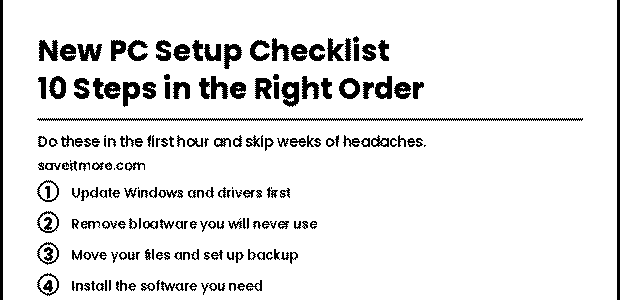

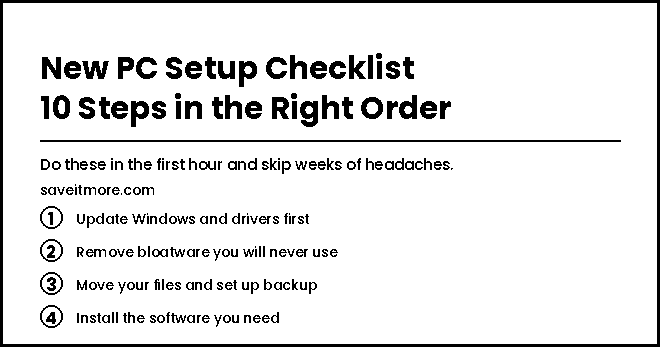
A good new PC setup checklist saves you from the two classic mistakes: installing everything before Windows has finished updating, and forgetting backup until the day you need it. The order matters. Do the steps below in sequence and your new computer will be faster, cleaner and safer from the first day.
This guide covers the ten steps, what each one does, the tools that make the slow parts quick, and what you can safely skip.
The first hour at a glance
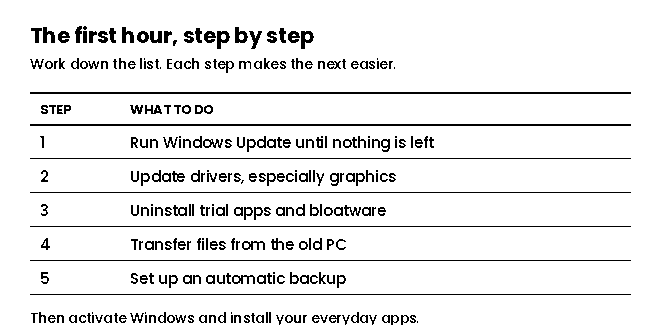
If you only do five things, do these first. Everything else on the new PC setup checklist builds on them.
The new PC setup checklist, step by step
1. Run Windows Update until nothing is left
A new PC often ships with Windows that is weeks or months behind. Open Settings, go to Windows Update and install everything, restarting as many times as it asks. Then check again — updates often arrive in waves. Microsoft’s Windows Update guide explains the options.
Do this before anything else on your new PC setup checklist. Installing software on a half-updated system is the most common cause of odd first-week problems.
2. Update drivers, especially graphics
Windows Update covers many drivers, but not always the newest. For gaming or creative work, install the latest graphics driver from NVIDIA, AMD or Intel directly. Laptop owners should also check the manufacturer’s support page for chipset, audio and touchpad drivers.
3. Remove bloatware and trial software
Most new PCs arrive with trial antivirus, games and manufacturer utilities you will never use. Open Settings, then Apps, and uninstall what you do not recognise or need. It frees space, speeds up start-up and removes pop-ups asking you to subscribe.
Be careful with anything from your PC’s manufacturer that controls hardware — fan profiles, keyboard lighting or battery care. If in doubt, leave it.
4. Check your storage layout
Next on the new PC setup checklist, look at how the drive is split in Disk Management. Some PCs come with a small C: drive and a large empty partition. If C: is tight, our guide on how to extend the C drive in Windows shows how to fix it before you fill it up.
5. Move your files from the old PC
For documents, photos and music, an external drive or cloud storage works. For a full move — programs, settings and user accounts — PC transfer software saves hours compared with reinstalling everything by hand. If you are upgrading the drive in an existing PC instead, cloning is faster; see how to clone a hard drive to an SSD.
Tools for this step: EaseUS and AOMEI both make PC-to-PC transfer and disk tools. Our EaseUS vs AOMEI comparison explains which suits you. EaseUS offers → · AOMEI offers →
6. Set up an automatic backup
This is the new PC setup checklist step most people skip and the one they regret. Set up a backup now, while the PC is clean: a full system image to an external drive, plus automatic backups of your personal folders. If the drive ever fails, you restore instead of starting again.
Our guide to the best backup software for Windows compares the options, and if something is ever deleted by mistake, see how to recover deleted files on Windows.
7. Activate Windows properly
On any new PC setup checklist, activation is quick: check Settings, System, Activation. Most new PCs come activated. If you built your own PC or replaced the drive, you will need a licence. Buy from a reputable seller — our guide on the cheapest safe way to buy a Windows licence explains what to avoid. DirectDeals Windows and Office offers →
8. Install your everyday software
Now install what you actually use: browser, office suite, password manager, messaging apps. Install from official sites or the Microsoft Store only. A few categories worth considering on any new PC setup checklist:
- Office apps: Microsoft Office or a free alternative. DirectDeals →
- PDF tools: for editing, signing and converting documents — see our guide to converting PDF to Word without losing formatting. Wondershare →
- Photo editing and organising: ACDSee →
- Video editing: Wondershare Filmora →
- System and privacy utilities: see which Abelssoft program you need. Abelssoft →
- Games: GAMIVO →
Do not pay full price for software
Software brands discount heavily and often — student and teacher pricing, lifetime licences, bundles and seasonal offers. Before you buy anything on this new PC setup checklist, open the store’s coupon page linked above and compare the code with the bundle price. Lifetime licences usually beat yearly subscriptions if you keep a PC for several years.
9. Tune privacy and start-up settings
Near the end of your new PC setup checklist, go through Settings, Privacy and security, and turn off advertising ID and tracking you do not want. Then open Task Manager, go to Startup apps and disable anything that does not need to launch with Windows. This is one of the easiest speed gains on a new PC.
10. Set up your workspace
The PC is ready; now make it comfortable. Set display scaling and night light, connect your monitors, and check your desk and screen height so you are not hunched over by the end of the week. Our standing desk height guide covers the ergonomics.
Extra steps for a gaming PC
A gaming machine needs a few additions to the standard new PC setup checklist:
- Enable XMP or EXPO in the BIOS. Memory often runs below its rated speed until you switch this on. It is a single setting and a free performance gain.
- Set the display refresh rate. A 144 Hz or 165 Hz monitor frequently runs at 60 Hz out of the box. Check Settings, Display, Advanced display.
- Install your game launchers after the graphics driver, not before, so shader caches build against the right driver.
- Check that the GPU is plugged into the graphics card, not the motherboard’s video output. It sounds obvious, but it is one of the most common mistakes on a new build.
Games themselves are one of the easiest places to save money: key marketplaces and publisher sales regularly undercut launch prices by a wide margin.
Extra steps for a new laptop
Laptops add battery and portability to the new PC setup checklist:
- Turn on the manufacturer’s battery care mode if you mostly use the laptop plugged in. Limiting the charge to around 80% can extend battery life over the years.
- Enable device encryption or BitLocker and make sure the recovery key is saved to your Microsoft account. A lost laptop is then a hardware loss, not a data leak.
- Set up Find My Device in Settings, Privacy and security.
- Check the power mode. “Best performance” when plugged in and “Balanced” on battery is a sensible default.
Keeping the new PC fast
A clean setup stays clean with a little discipline. Install software only from official sources, keep Windows Update switched on, review start-up apps every few months, and keep at least 15–20% of your main drive free. Revisit your backup once a quarter and actually test a restore of one or two files — a backup you have never tested is only a hope.
If you follow the new PC setup checklist above and these habits, most PCs stay quick for years without any “optimiser” software at all.
What you can skip on a new PC setup checklist
- Third-party “PC cleaner” or “RAM booster” apps. Windows handles this itself; many of these tools do more harm than good.
- Extra antivirus on top of Microsoft Defender for most home users, unless you want specific features.
- Driver updater tools. Use Windows Update and the manufacturer’s site instead.
Frequently asked questions
What is the first thing to do on a new PC?
Run Windows Update until no updates are left, restarting as needed. Every other step on the new PC setup checklist works better on a fully updated system.
Should I remove bloatware from a new PC?
Yes, uninstall trial software and apps you do not use. Leave manufacturer tools that control hardware such as fans, battery or keyboard lighting.
How do I move everything from my old PC to a new one?
Copy personal files with an external drive or cloud storage, or use PC transfer software to move programs, settings and files together.
Do I need to buy Windows for a new PC?
Not for a pre-built PC or laptop, which normally comes activated. A self-built PC, or one with a replaced drive, may need a licence.
How long does a new PC setup take?
The first five steps take about an hour, mostly waiting for updates. Transferring files and installing software can take an afternoon, depending on how much you move.
The bottom line
Follow the new PC setup checklist in order: update, drivers, remove bloatware, check storage, move files, back up, activate, install your software, tune privacy and start-up, then set up your workspace. It takes an afternoon and saves you weeks of small problems.
Before you buy any software along the way, check the store’s current offers — the difference between full price and a good bundle or lifetime deal is often significant.